Posts

Showing posts with the label Developer Tips

Activate Windows 10/11 Without a License Key | Free Activation

Image
Method 1 to Activate Windows 10 or Windows 11 - It can also activate Windows 11 For Free. Open a Command Prompt as an administrator on Windows 11 and enter these commands one after the other. If the last step fails, keep retrying until it succeeds. It might take 3-4 tries but can be instant. Yes You can Activate Windows Freely by using this code and Getting Windows Activated slmgr /ipk W269N-WFGWX-YVC9B-4J6C9-T83GX slmgr /skms kms8.msguides.com slmgr /ato  Restart your PC after the last step. Enjoy, Your Windows 10 or 11 will be activated. Method 2 to Activate Windows 10 - Step 1: Click on the start button, search for “cmd” then Open Command Prompt (cmd) as administrator. Use command slmgr /ipk [KEY HERE] Keys - Home: TX9XD-98N7V-6WMQ6-BX7FG-H8Q99 Home N: 3KHY7-WNT83-DGQKR-F7HPR-844BM Home Single Language: 7HNRX-D7KGG-3K4RQ-4WPJ4-YTDFH Home Country Specific: PVMJN-6DFY6-9CCP6-7BKTT-D3WVR Professional: W269N-WFGWX-YVC9B-4J6C9-T83GX Professional N: MH37W-N47XK-V7XM9-C7227-GCQG9 Educa...

Get FIGMA Pro Free For 2 Years !

Image
  FIGMA INTERFACE DESIGN SOFTWARE PRO!! FREE UPGRADABLE UPTO 2 YEARSS. GO TO INCOGNITO MODE. VISIT- https://www.figma.com/education/ SELECT GET VERIFIED. LOGIN WITH GMAIL ACCOUNT. FILL UP EDUCATION DETAILS. UPGRADE TO PRO VERSION IN SETTINGS WITH 0$ CHARGES.

Free RDP Hosting: No Credit Card Required for Limitless Remote Access!

Image
  In the era of remote work, access to your workspace from anywhere is non-negotiable. Enter RDPHostings.com – your ticket to Free RDP Hosting! 🌐💼 How to Get Rolling: 👉 Sign Up: Quick account creation on RDPHostings.com - no credit card or debit card required! ✅ Choose Free Plan: Embrace cost-free remote access. 🛠️ Setup: Configure your remote desktop – guided assistance included. 🚀 Connect: Dive into your remote workspace from any device, anywhere. 100% Free RDP Hosting Server For Lifetime! RDPHostings® ♥ Offer 100% Free RDP Server Hosting Without Credit Card For The Lifetime With Instant Activation. Get Instant Activation on Free Remote Desktop Server, Full Admin Access, Enterprise Hardware & 24*7 Customer With Username And Password For Windows, Chrome, Android, macOS, iPhone. Services Free VPS Trial Free RDP Server Ubuntu RDP Server Windows RDP Server Premium RDP Server Become Affiliate Partner Final Word: Don't let borders define your workspace. 🌍💼 RDPHostings.co...

Art Flair – VideozAi + Whitelabel

Image
 ChatGPT4 and Palm2 Powered AI Content and Video Creation 1,000+ DFY High Quality Templates Included Create Scroll-Stopping Videos For Social Media Create Sales Copy, Blog Posts, Articles, Swipes and more Built-in Premium Music Tracks Create High Converting Ads and 3D Ads Convert Any Content Into Videos AI Based Background Removal 3 Million+ Searchable Stocks Included Instagram, FB, Snapchat, Whatsapp Story Creator Start Your Own Marketing Agency Save Time and Money Nothing to Install – 100% Cloud-based Anyone can do this! 🌐 https://grabvideozai.com/live2 🔗 Members Area 🔗 Whitelabel

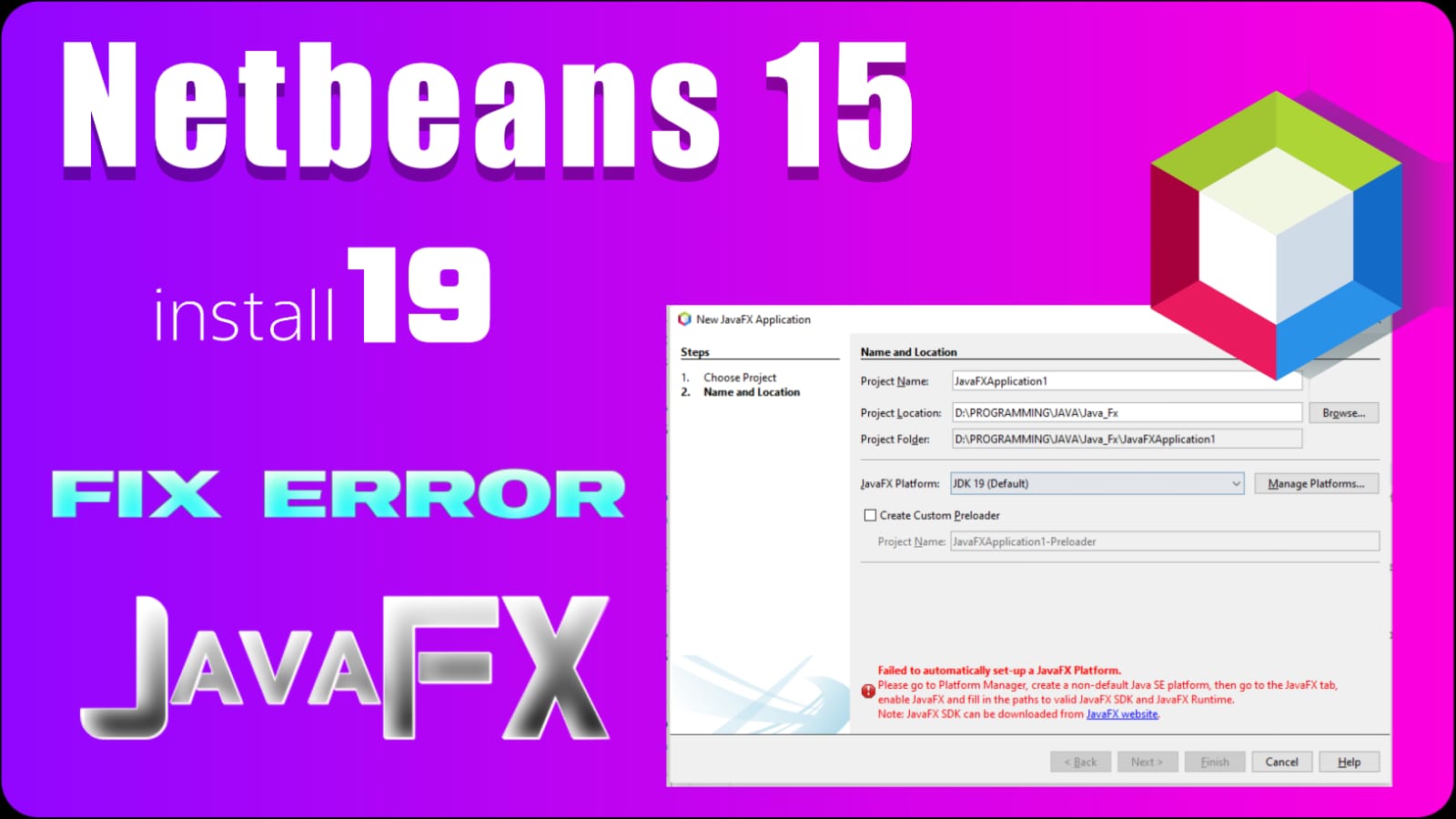
How to install JavaFX 19 in Netbeans IDE | Fix the error Failed to automatically set-up a JavaFX SDK 2023

Image
  Hello developer's in this artical I'm going to teach you How to install JavaFX 19 in Netbeans IDE | Fix the error Failed to automatically set-up a JavaFX SDK in 2023 so let's start. JavaFX Download .zip First of all go to given website and download the JavaFX SDK latest version with your system requirements that is a Window, Mac, Linux etc.  Than you need to extract that folder inside the   C:\Program Files\Java   this directory and after that open the netbeans IDE. Inside the netbeans IDE on the top of you can see the Tool option click on the tools option. After clicking the tool option there you can see more option find the Java Platform option than click on that option. After that click on the Add Platform Button. Than select the platform type. Here you don't need to change anything just click on next button. Here you need to select your Downloaded folder that is zulu19.32.15-ca-fx-jdk19.0.2-win_x64  and click on next button. And finally c...

MinGW-w64 - for 32 and 64 bit Windows, Using GCC with MinGW-w64 Installation Process in windows 10

Image
MinGW-w64 Hello Developer, In This artical I teach you How to instsll  MinGW-w64 - for 32 and 64 bit Windows. The mingw-w64 project is a complete runtime environment for gcc to support binaries native to Windows 64-bit and 3 2-bit operating systems. Using GCC with MinGW In this tutorial, you configure visual studio code to apply the gcc c++ compiler (g++) and gdb debugger from mingw-w64 to create programs that run on windows. After configuring vs code, you will compile and debug a easy (Hello World Program) in vs code. this educational does now not train you about gcc , gdb, mingw-w64, or the c++ language. for those topics, there are many correct resources available on the internet. If you have any issues, experience free to file an problem for this educational inside the vs code Documentation repository. How to install MinGW-w64 C Compiler :-  Get the modern version of mingw-w64 via MSYS2 , which affords updated local builds of gcc , mingw-w64, and other beneficial ...